
How to Favorite a GIF on Discord (Desktop, iPhone, Android)
Star a GIF into Discord’s Favorites folder, find it later, take it back out, and see why a save fails — then make a speech-bubble reply GIF you can actually star.
GIF favorites are not the Nitro Favorites server
The feature this article is about is the GIF picker star. You mark a GIF, Discord puts it in a Favorites folder inside the GIF picker, and you can send it again from any channel or DM. Discord’s help article Sending GIFs on Discord (updated 29 June 2026) is the official description: hover, click the gold star, find the folder at the top of the picker.
A Nitro experiment also called Favorites is a sidebar of channels and DMs, documented in Discord’s Favorites FAQ. Starring a GIF does not pin a channel. Pinning a channel does not save a GIF.
How to favorite a GIF on Discord desktop and browser
These steps apply to the desktop app and to discord.com in a browser. They do not require Nitro.
- Open a channel or DM and find the GIF — in chat, or via the GIF button (Tenor search).
- Hover the GIF. A gold star appears in a corner. Unfilled means it is not saved yet.
- Click the star. Filled = favorite, unfilled = not a favorite.
- Open the GIF picker. Favorites is the first category.
The hover target is the GIF itself — not the username, the reaction row, or a link preview. If the star never appears, skip to why a GIF will not save.
Where Discord keeps your favorite GIFs
Favorites live in the GIF picker, not Saved Messages, your media gallery, or Server Settings. Click the GIF icon on the message bar; the first category is Favorites. The list is tied to your account, so a GIF you star on desktop shows up in the same folder in the browser.
The picker is Tenor — Discord says so in the sending-GIFs article, and the mobile search field still says “Search Tenor.” A Tenor GIF is a picker item you can star. A PNG you uploaded as a file is only an attachment.
How to remove a GIF from favorites
Unfavoriting is the same control in reverse.
- Hover the GIF — in chat or inside the Favorites folder.
- Click the filled gold star. It hollows out.
- Open the GIF picker. That GIF should no longer be in Favorites.
Unfavoriting does not delete the original message, and deleting that message does not remove the favorite. The star is a pointer in your picker, not a copy of chat history.
How to favorite a GIF on iPhone
Discord’s June 2026 sending-GIFs article still says you can only favorite GIFs on desktop and browser, and that mobile is “still working.” Treat that as the official status. In the iOS app, this workaround is what people actually use:
- Send the GIF, or find one already in the thread (smiley → GIFs → Search Tenor → tap a result to send).
- Tap the GIF itself, not a long-press on the message. Long-press opens copy/reply/delete, which is not the star.
- On the expanded GIF, tap the star in the upper-right.
- You can delete the message afterwards; the favorite stays. Use it from smiley → GIFs → Favorites, including GIFs you starred on desktop.
If there is no star on iOS, star the GIF on desktop or in a browser. The folder is account-wide even when the mobile control is missing.
How to favorite a GIF on Android
Android follows the same official caveat and the same practical workaround as iPhone.
- Open Discord for Android and go to the chat that has the GIF, or send one from the GIF tab (smiley → GIFs → Search Tenor).
- Tap the GIF image to expand it. Do not long-press the message.
- Tap the star in the upper-right of the expanded view.
- Open the GIF picker later; Favorites is the first category.
Do not long-press a DM to “favorite” that conversation, and do not use the Nitro Favorites sidebar. Neither of those puts a GIF in the picker.
Limits, and why a GIF sometimes will not save
When the star does nothing, it is almost never a mystery setting. It is one of these.
File size
A GIF you upload as a file has to fit Discord’s attachment cap. Discord’s File Attachments FAQ (updated 13 August 2026) sets the free limit at 20 MB per file, Nitro Basic at 50 MB, and Nitro at 500 MB. As of that update they check size before compression, which hits Android source files harder. A Tenor search result is not an upload, so this cap does not apply to starring picker GIFs.
Link versus upload
Pasting a GIF URL can show a preview with no star. Upload the file, or send it from the Tenor picker, then star that.
Tenor versus an attached still
Favorites is a folder inside the GIF picker. PNG, JPEG, and WebP attachments never appear there. That is the whole reason the Discord speech bubble maker defaults to a GIF download: Discord will let you star a GIF into the picker. A PNG of the same bubble is fine as an emoji, a sticker, or a one-off upload, and useless as a favorite.
Emoji and sticker sizes are a different pipe
Custom emoji (128×128) and stickers (320×320) are server expressions, not GIF favorites. For a speech-bubble emoji, export a PNG and resize; the Discord speech bubble meme guide covers that path. For a one-click reply that follows you across servers, you want a GIF favorite.
The mobile gap
If you are on iPhone or Android and there is simply no star, that matches Discord’s published status, not a broken install. Star it on desktop. The folder still syncs.
Make a speech-bubble reply GIF you can actually favorite
A speech-bubble reply GIF is your picture, a bubble, exported as a GIF, posted once, starred, reused.
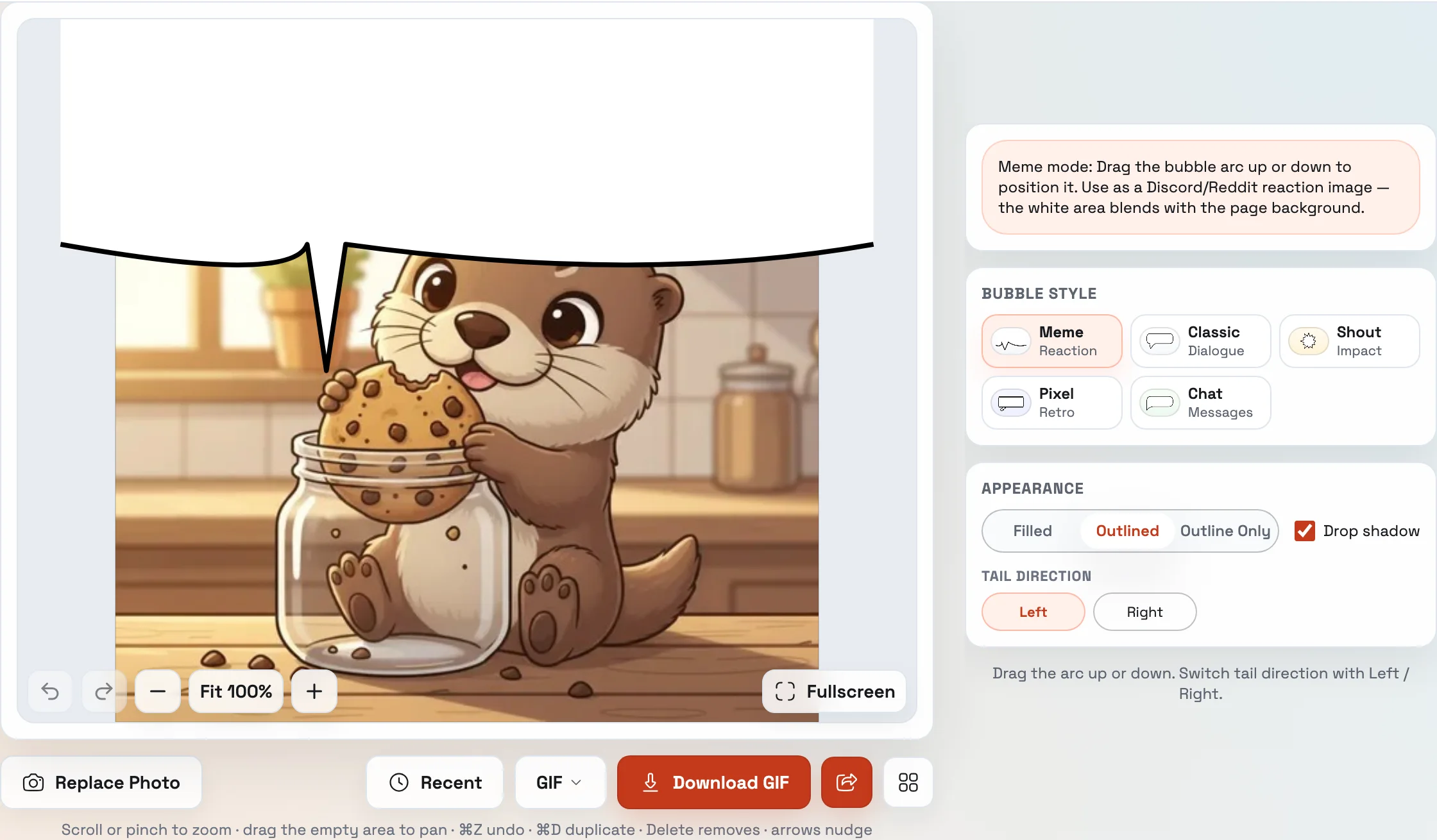
Build the still reply
- Open the Discord speech bubble maker. It starts on the Meme style and a GIF download on purpose.
- Upload the face, screenshot, or PFP. Photos stay in the browser; nothing is uploaded to our servers to edit.
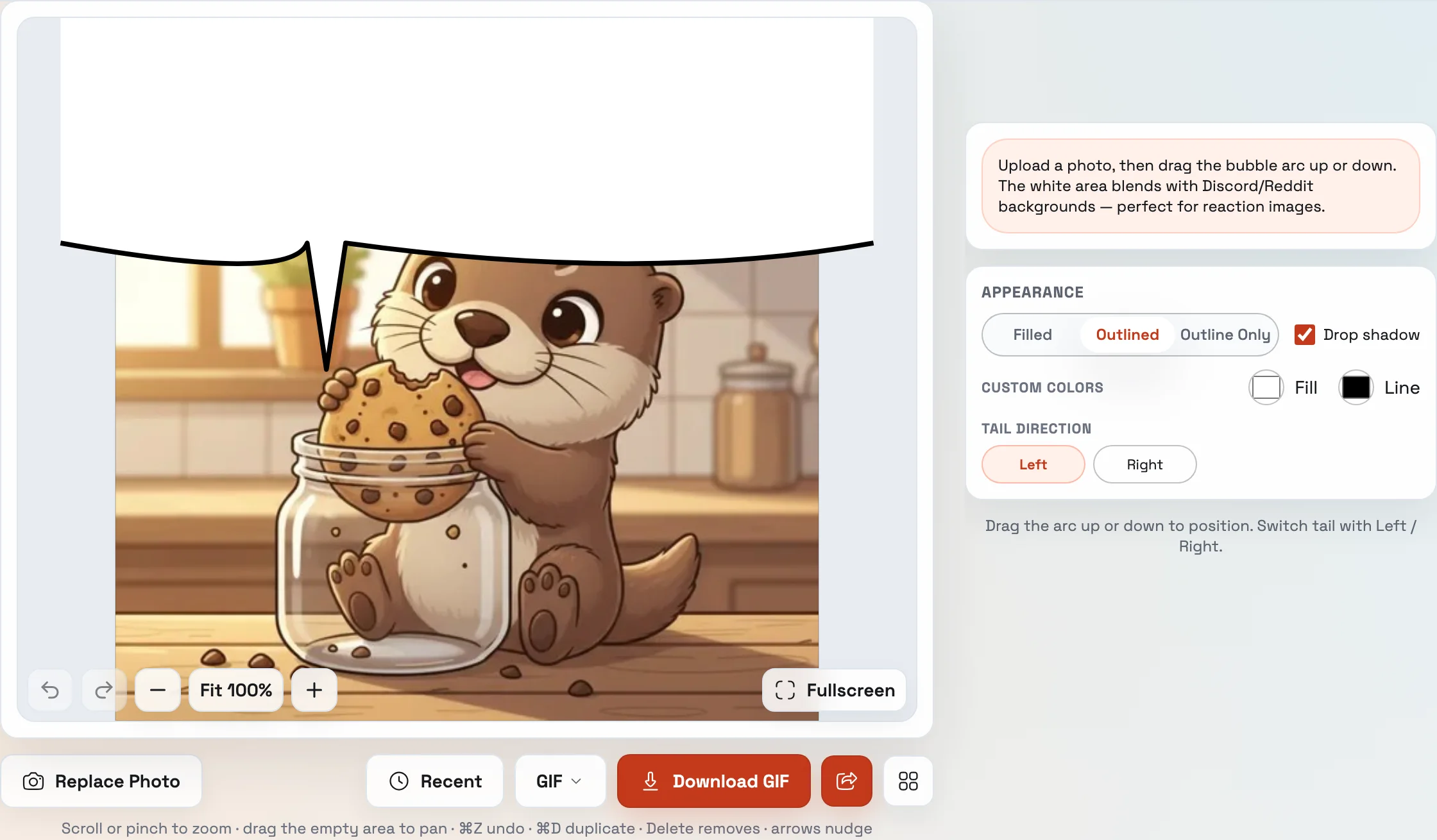
- Meme is the cropped white bubble for light theme; Pixel, Chat, Classic, and Shout are on the same page for a visible outline. On Meme, the bubble appears when you upload.
- Drag the bubble and the red tail tip onto whoever is speaking. Leave Meme empty if the “line” is the Discord message above it.
- Download as GIF, post it, and click the star. It then lives under Favorites.
The same cropped-white format, aimed at Reddit as well as Discord, is on the speech bubble meme generator. Download GIF for Discord favorites; switch to PNG when the destination is Reddit.
Add motion if you want the bubble to arrive
The still GIF is enough to star. If you want the bubble to pop in, or to type its text on, open the export menu next to Download.
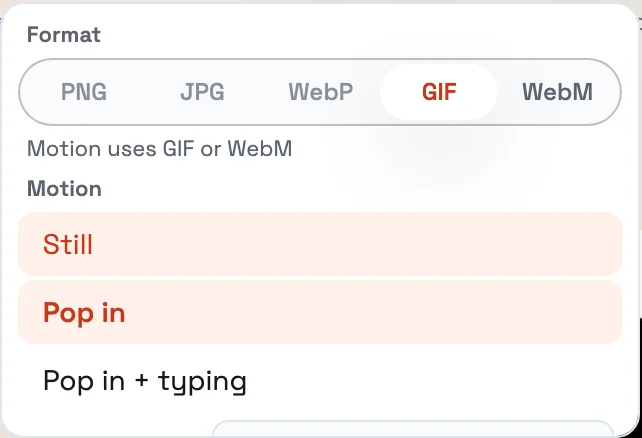
- Still — one frame. This is the default Discord-maker download, and it stars like any other GIF.
- Pop in — the bubble scales onto the picture.
- Pop in + typing — the same entrance, then the letters fill in.
Press Play on a free account to preview. Exporting the animated GIF or WebM is part of Pro. GIF is the format the Discord picker can favorite; keep the file under the 20 MB free upload cap. For other shapes, use the chat bubble generator, the pixel bubble generator, or a blank speech bubble. The older speech bubble GIF guide covers other tools; Play plus Pro GIF/WebM is what this site does today.
Frequently Asked Questions
How do I favorite a GIF on Discord desktop?
Can I favorite a GIF on Discord iPhone or Android?
Where do Discord GIF favorites go?
Why won’t Discord save a GIF to favorites?
How do I make a speech-bubble GIF I can favorite on Discord?
Related articles:
Related tools: